Build a Smart Home With Sonoff Zigbee Smart Plugs and Buttons
In this tutorial, we will learn how to control mains powered devices using remotely controlled plugs that are triggered by a simple button press. We'll look at toggling devices on and off, and learn how to trigger a Home Assistant "scene".
A scene is Home Assistant parlance for setting and using a state. Say we want to watch a movie, the name of the state would be "movie" and triggering it could turn off the lights, turn on some RGB LEDs to set the mood, and of course turn on the TV. To trigger this, we will be using a Sonoff Orb 4-in-1 smart scene button, which communicates over Zigbee with a series of Sonoff iPlug mains plug adapters.
The Process
To setup the Orb 4-in-1 to control outlets in our living room, we need to first setup all of the Sonoff iPlugs that will be used in our electrical sockets (outlets). After that, we then configure the Orb. All of these devices use Zigbee, a wireless protocol that is extensively used in home automation projects, and so the setup is largely the same.
The device is placed into pairing mode, either by a button or removing a tag from a battery. In Home Assistant we search for the device. When Home Assistant detects it, an "interview" process starts and Home Assistant learns the features of the device. Once connected, we can give the device a meaningful name and place in our home / office.
What You'll Need
- Home Assistant Green (or a Raspberry Pi 5 running Home Assistant).
- Home Assistant Connect ZBT-2.
- Sonoff Zigbee Smart Plug (iPlug S60ZBTPG).
- Sonoff Orb 4-in-1 Zigbee Smart Scene Button.
Setting Up The Sonoff iPlugs
The Sonoff iPlugs are a safe and convenient way to control mains electricity devices. They plug straight into the wall socket, and your device into it. They have a max load of 3250W, approximately 13A and 240V, but we would avoid controlling high load appliances (washer / dryer, oven, microwave etc) with these plugs.
- Open a browser to your Home Assistant install. This is typically http://homeassistant.local:8123/ but your install may differ.
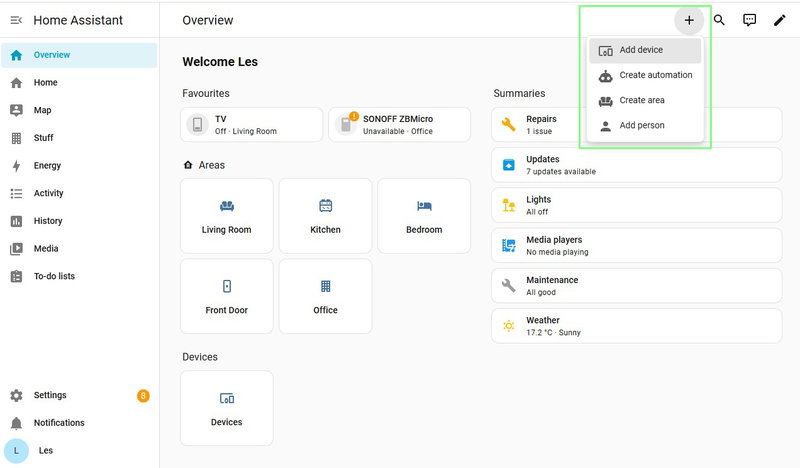
- Click on + and select "Add device"
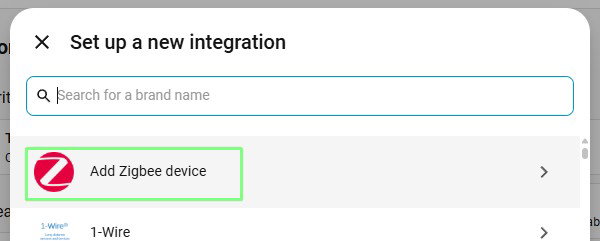
- Select Zigbee.
- Set the Sonoff iPlug into pairing mode (press and hold the button for five seconds).
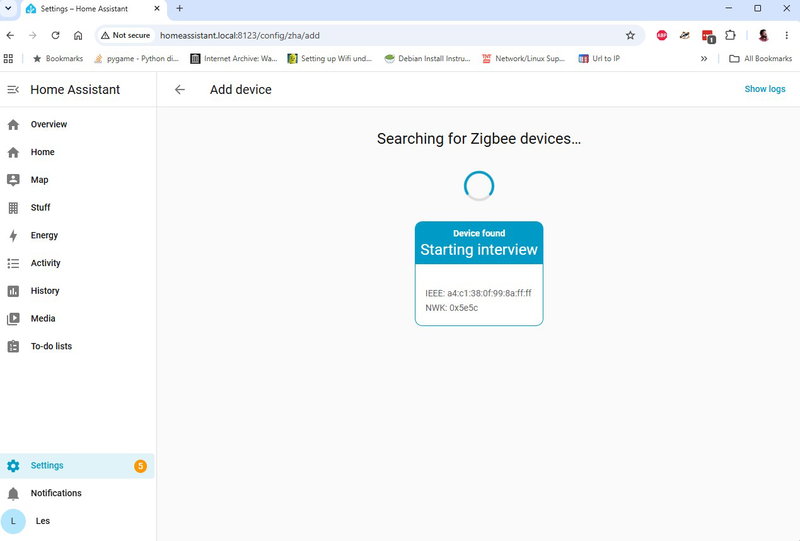
- Check that Home Assistant has found the device and is starting the interview process. In our tests, one iPlug connected instantly, another took a few attempts.
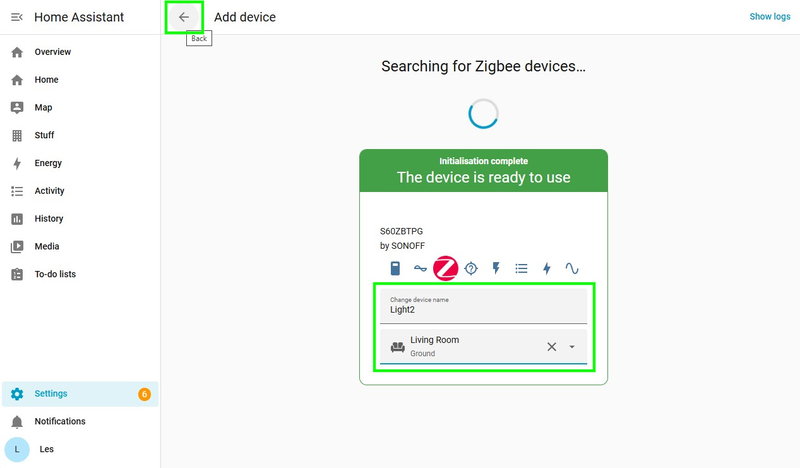
- Give the device a memorable name and location and then click on the back arrow to save.
- Repeat these steps for all of the Sonoff iPlugs that you wish to connect.
Setting Up The Sonoff Orb 4-in-1
The Sonoff Orb 4-in-1 is also a Zigbee device and so it follows the same pairing - interview process as the iPlugs.
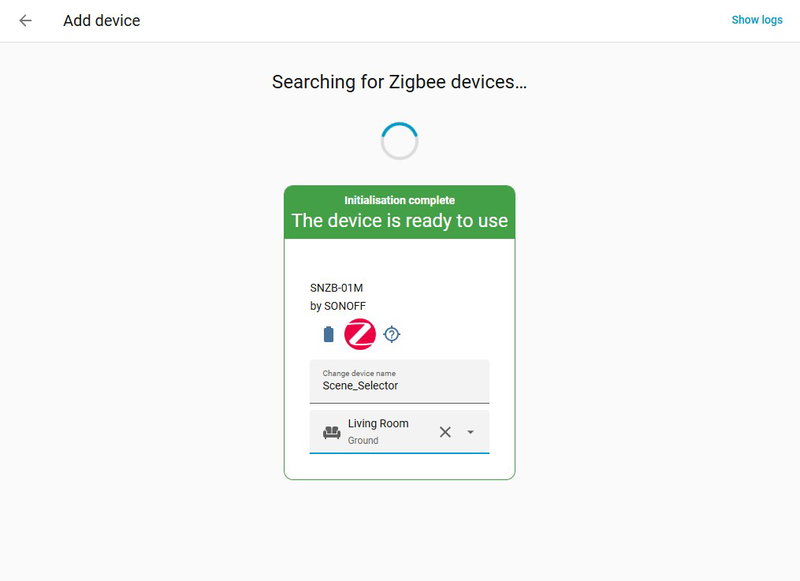
- Click on + and select "Add device"
- Select Zigbee.
- Set the Sonoff Orb 4-in-1 into pairing mode by unscrewing the battery cap from the rear of the unit and remove the tab from the battery. Screw the battery cap back into place.
- Check that Home Assistant has found the device and is starting the interview process.
- Give the device a memorable name and location and then click on the back arrow to save.
Triggering Events
The next step in the process is to assign actions to the four buttons on the Sonoff Orb 4-in-1. The four buttons can have multiple inputs, 16 in total.
- Single press
- Double press
- Triple press
- Long press
We're going to setup as follows
- Button 1:
- Single press to toggle Light1 on/off.
- Button 2:
- Single press to toggle Light2 on/off.
- Button 3:
- Single press to toggle TV on/off.
- Long press to toggle Light1, Light2 and TV on/off.
- Button 4:
- Saved for a future project.
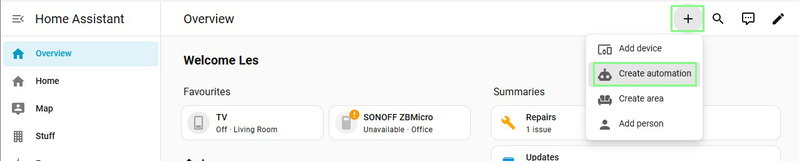
From the Home Assistant overview page, click on + and select Create Automation.
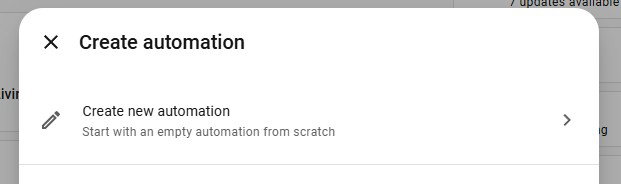
Select Create new automation.
- Click on Add Trigger.
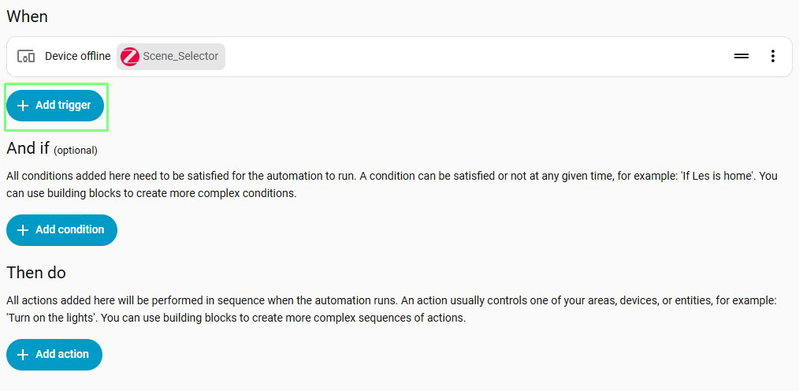
- Under Generic, select Device.
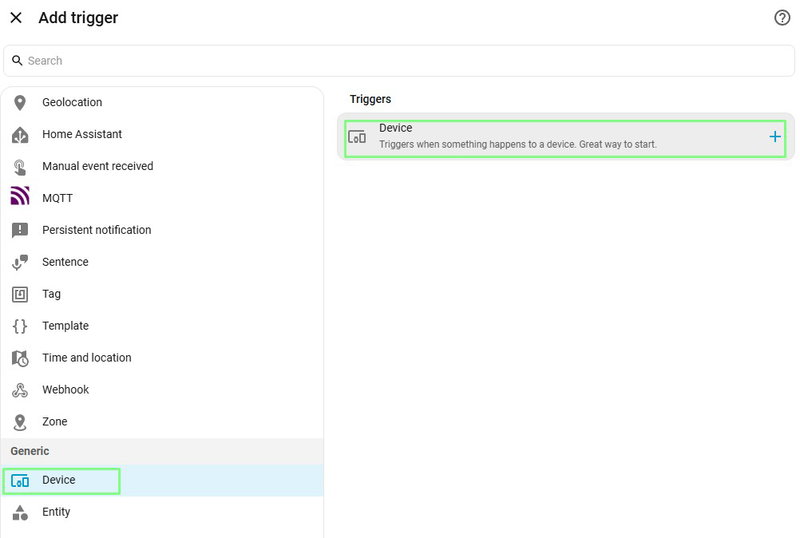
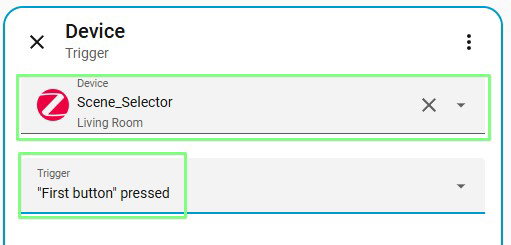
- From the Device dropdown, select the Orb 4-in-1, which we called Scene_Selector. Set the trigger to "First button" pressed.
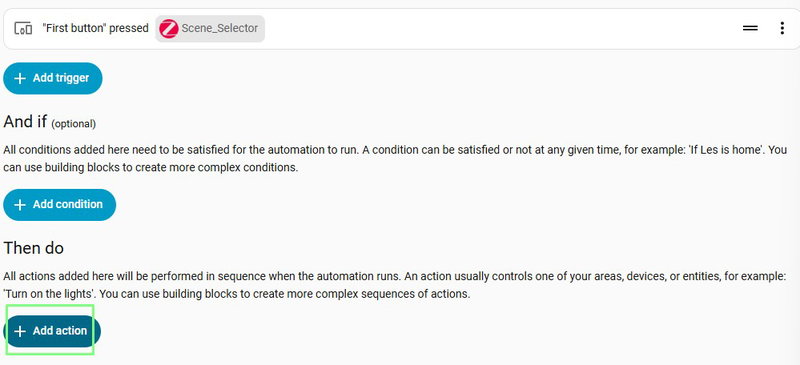
- Click on Add action. This is the action that will happen when the button is pressed.
- Scroll down to, and select Device.
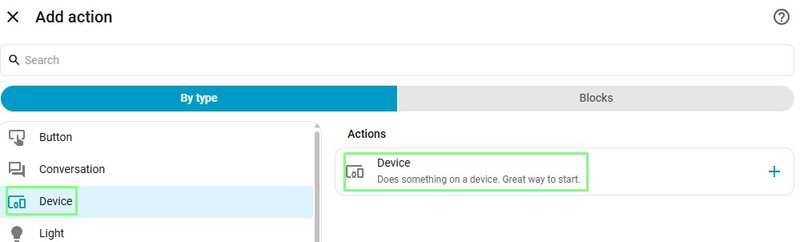
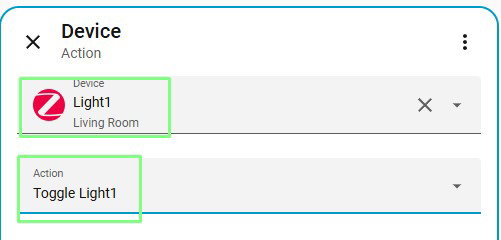
- Select the Device to the Sonoff iPlug that you wish to control. Then set the action to toggle. This will turn the light on, if already off, and off if it is on.
- Click on Save.

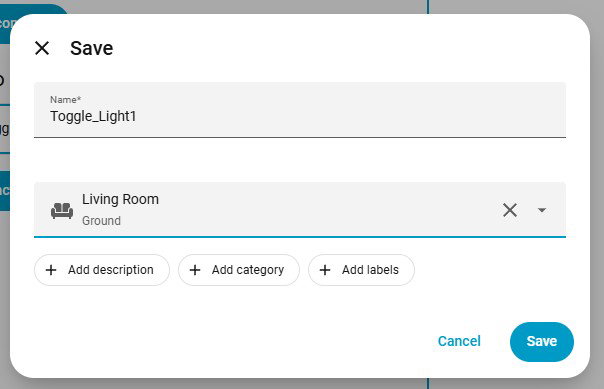
- Save the automation as something relevant. We chose Toggle_Light1 as it controls one of two lamps in the living room. You can also optionally set the area if you wish.
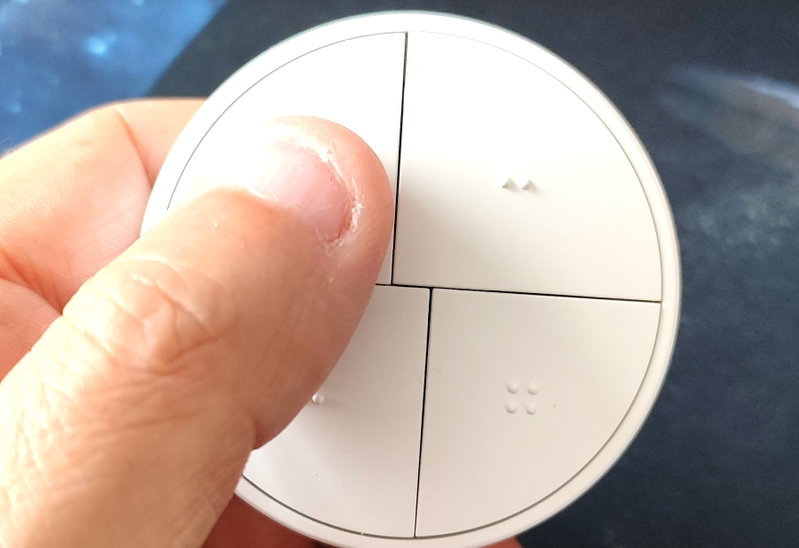
- Press Button 1 on the Orb 4-in-1 and the iPlug should "click", indicating that it has been activated. Test that it turns on and off without issue.
- Repeat these steps for all of the iPlugs that you wish to control. Remember to test each time you create an automation.
Creating A Scene
We have the Orb 4-in-1 and all of our smart plugs are setup and ready for use. Now we need to set the scene. Scenes are snapshots of the current device states. This makes setting a scene really easy.
- Set the state of the devices that you wish to use in the scene. Go around and turn things on / off and get everything to your liking.
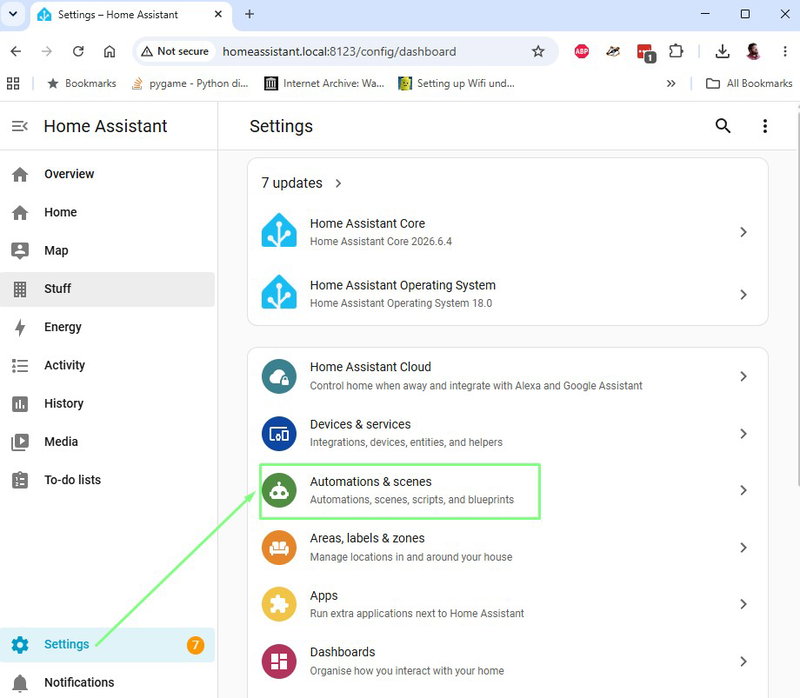
- Click on Settings >> Automations & scenes.
- Click on Scenes.
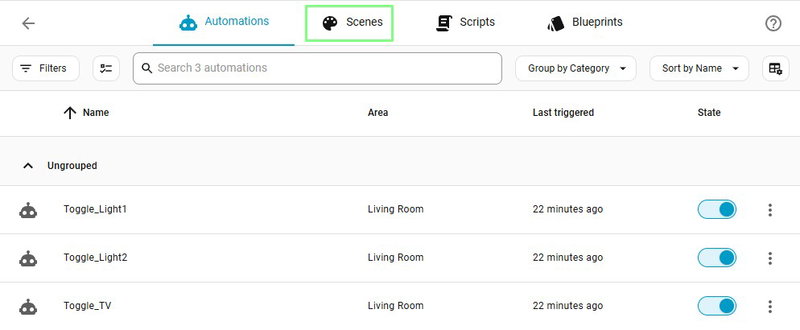
- Click on Create scene.

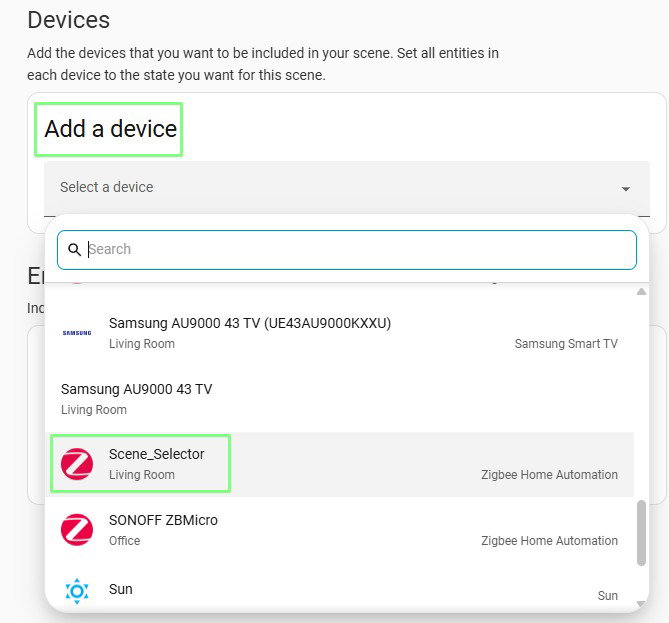
- Under "Add a device" select your Sonoff Orb 4-in-1 button.
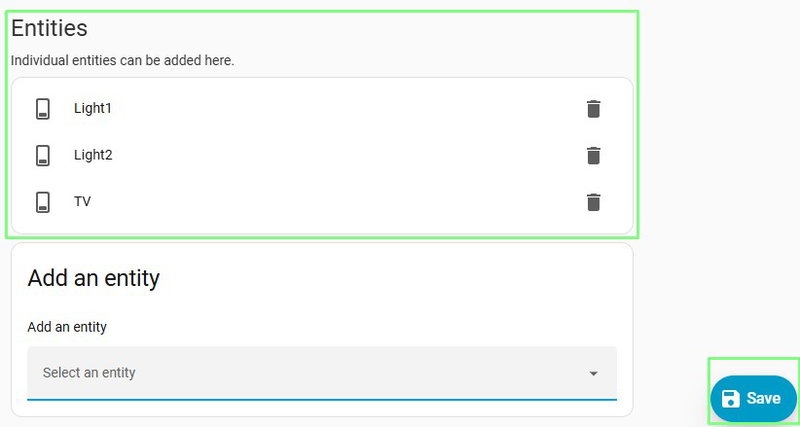
- Under Entities, add all of the devices that you have chosen to set your scene. Click Save when complete
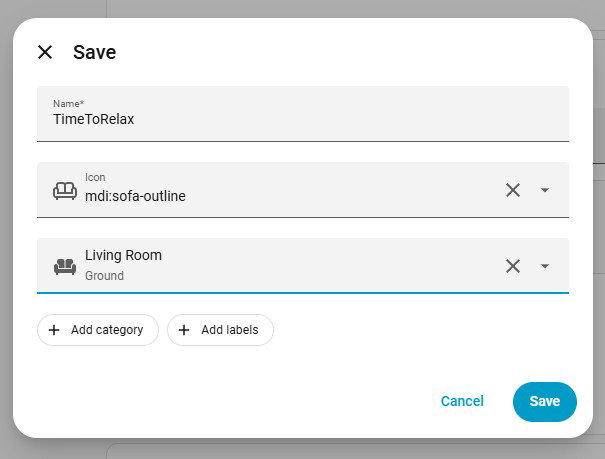
- Name the scene, assign an icon and then set the area (room) in your home. Click Save when done.
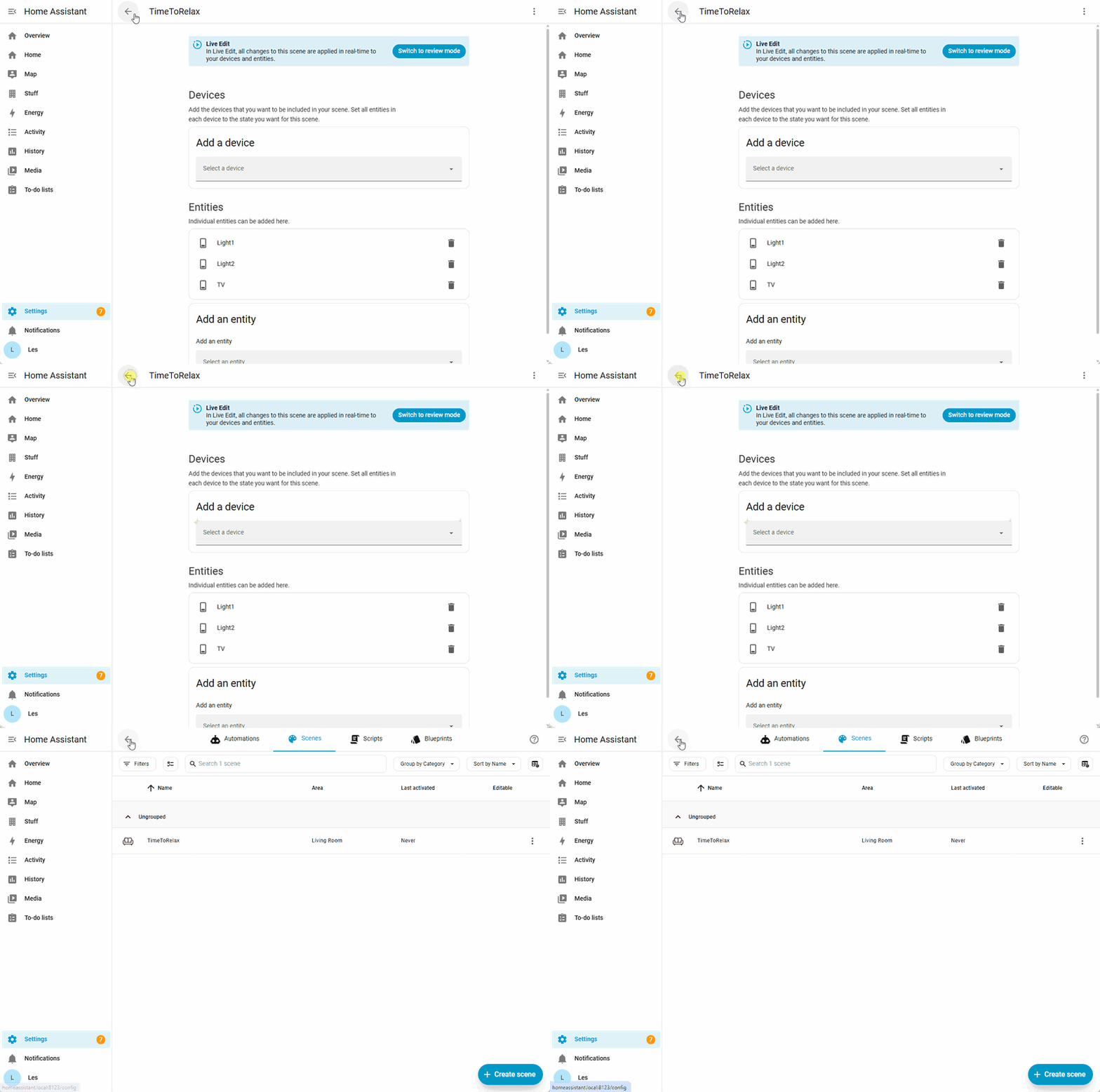
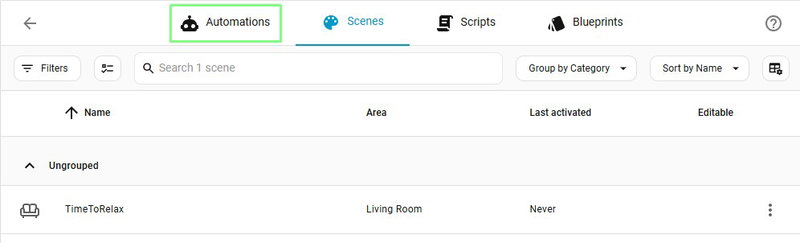
- Click on the back arrow to go back to the Automations / Scenes menu.
- Click on Automations.
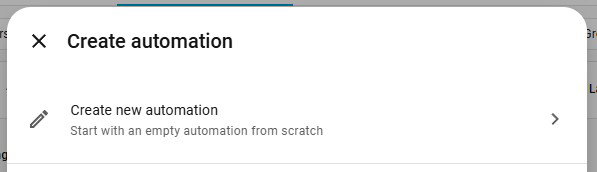
- Click on Create Automation.

- Select Create new automation.
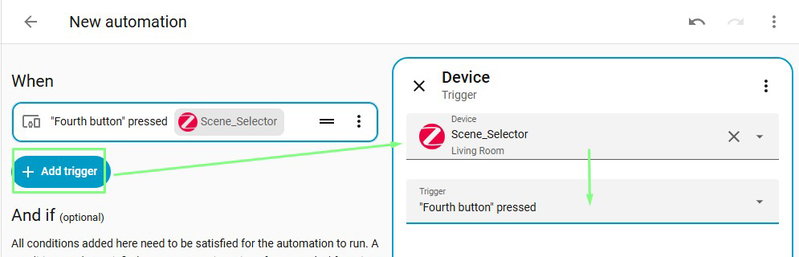
- Set the trigger to the fourth button of the Sonoff Orb 4-in-1.
- Click on Add action.
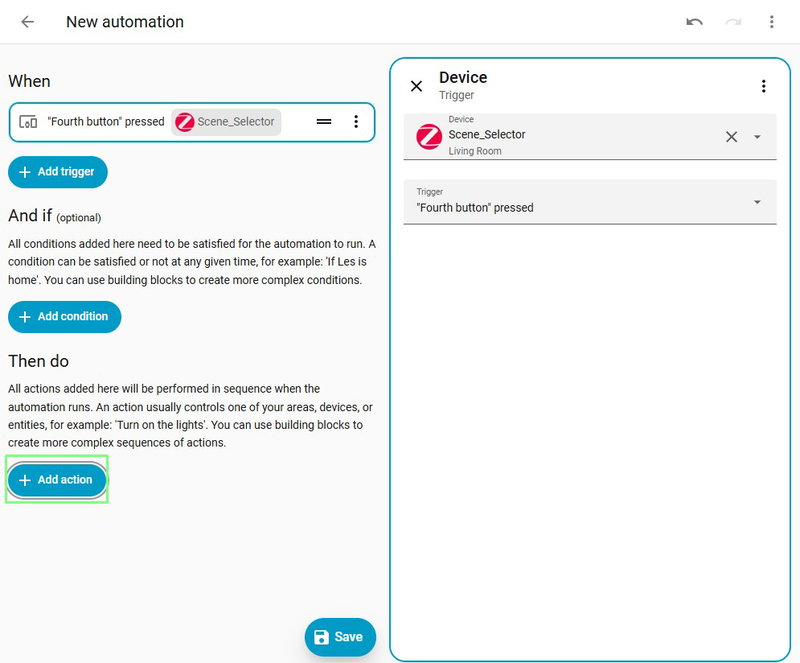
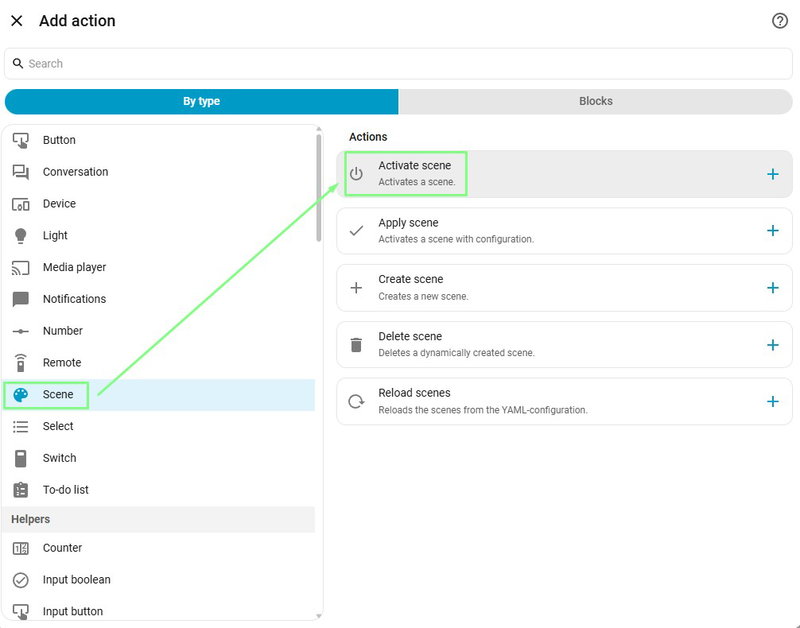
- Select "Scene" and under "Actions" select "Activate scene".
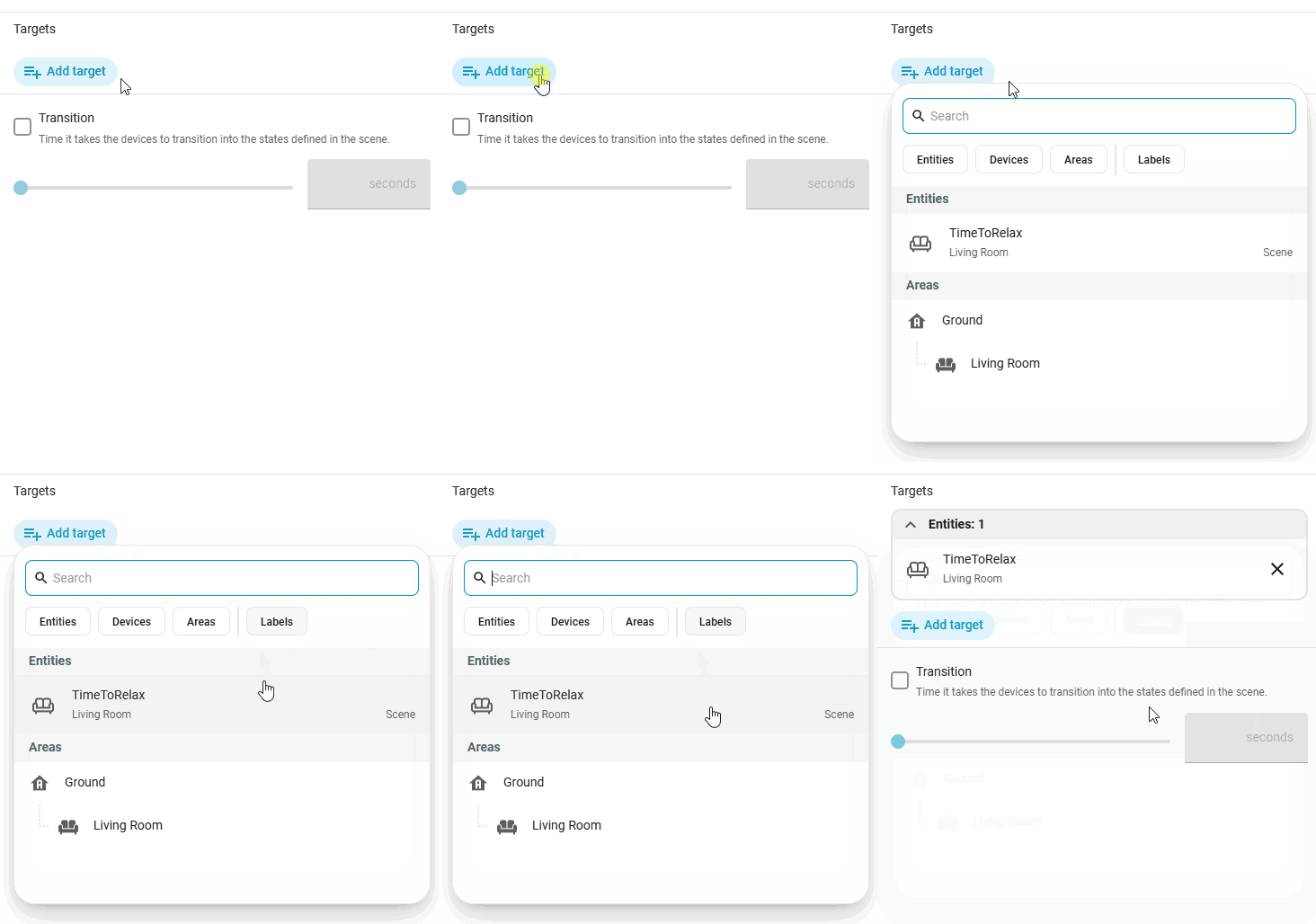
- Set the "Target" to the scene that we have just created. We called ours "TimeToRelax".
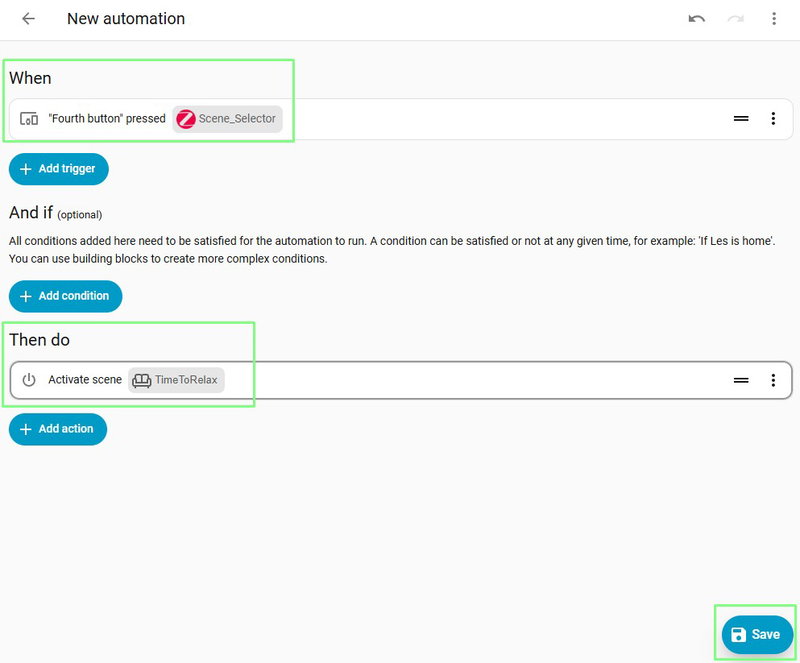
- Check that everything is correct, and when happy, click on Save.
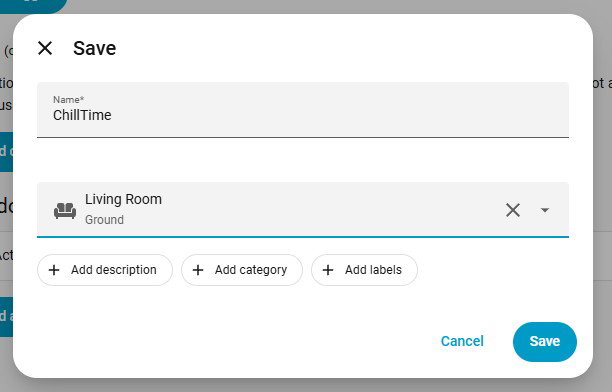
- Name the automation and place it in an area (room) then click Save.
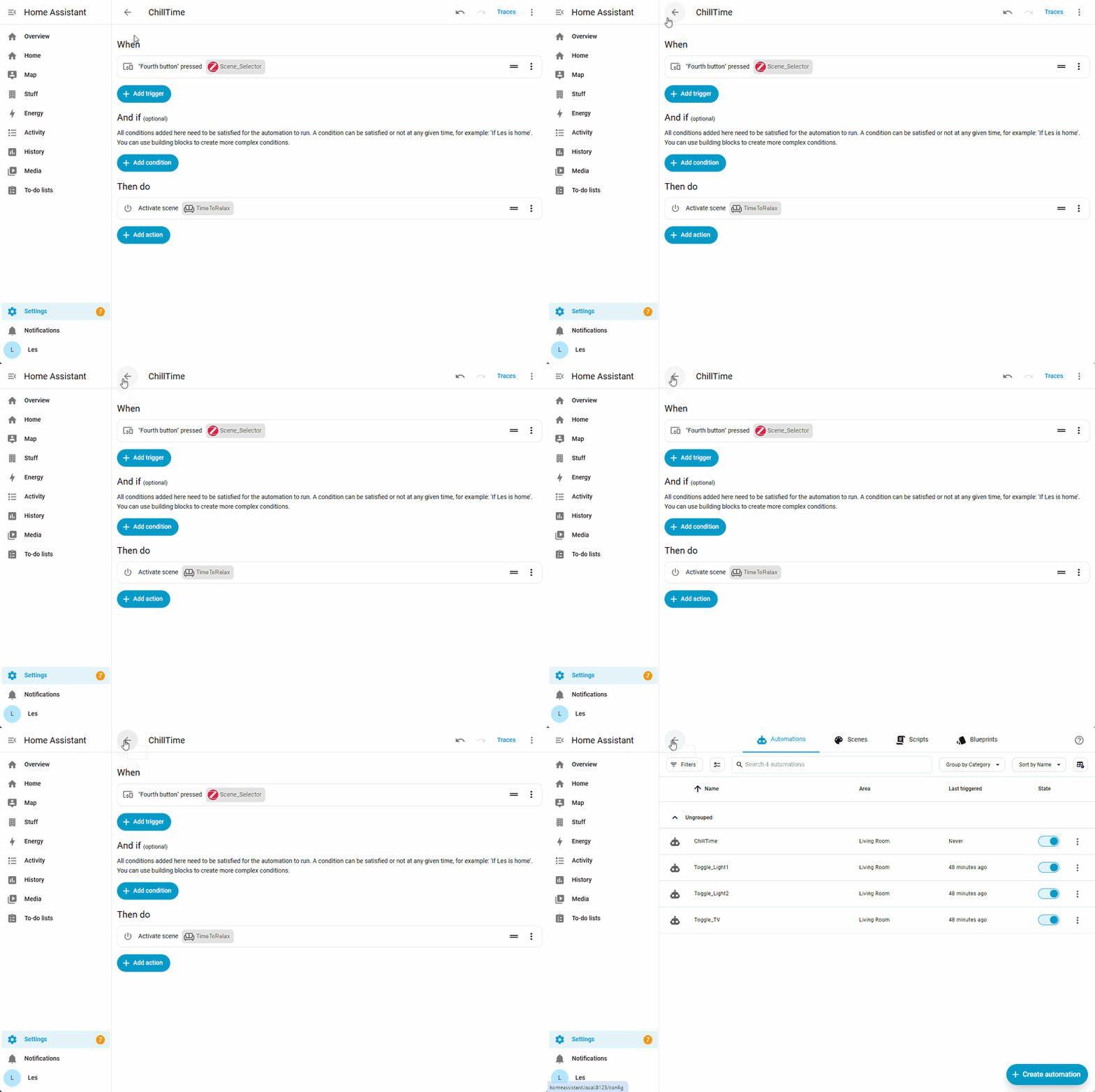
- Click on the back arrow to go back to the main automations and scenes menu.
- Ensure that all of the devices are set to the opposite of the scene. For example we made sure that the lamps and TV were off as our scene turns them on.
- Press the corresponding button on the Sonoff Orb 4-in-1 and the scene will activate.
What Have We Learnt?
We learnt:
- How to setup Zigbee devices.
- How to create automations.
- What scenes are and how to create them.
Using these skills, we can build an impressive, useful and safe smart home based around Zigbee devices.
Search above to find more great tutorials and guides.